
First: sync is a membership feature
Without a membership each device works on its own and nothing syncs automatically. That is not a fault.
One point worth stating plainly: using your own WebDAV server also requires a membership. What membership buys is the ability to sync across devices; where the data lives is your choice. Your own server simply has no size limit.
Setting it up
The first three steps are the same whichever storage you pick:
- Sign in (both devices must use the same account)
- Subscribe
- Go to Me → Data management → Backup
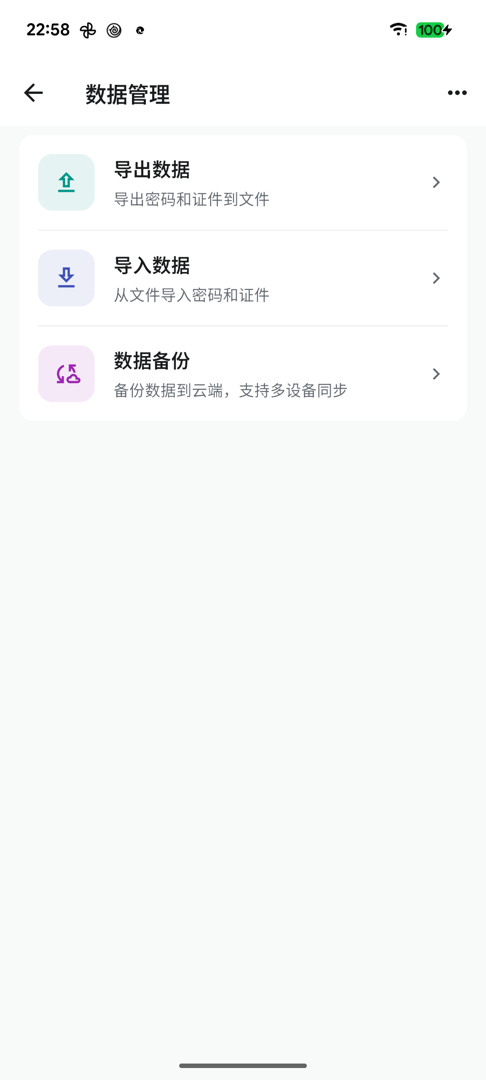
You have to pick a sync method yourself — two options appear: our servers, or your own WebDAV. Neither is preselected, and nothing syncs until you choose. Each is covered below.
Option 1: hosted
Tap Use KeyMe Pass server in that chooser. There is nothing to fill in — it configures itself.
Then sign in to the same account on your second device and let it sync down.
Option 2: your own WebDAV
Tap Custom WebDAV server in the same chooser and a form appears with four fields:
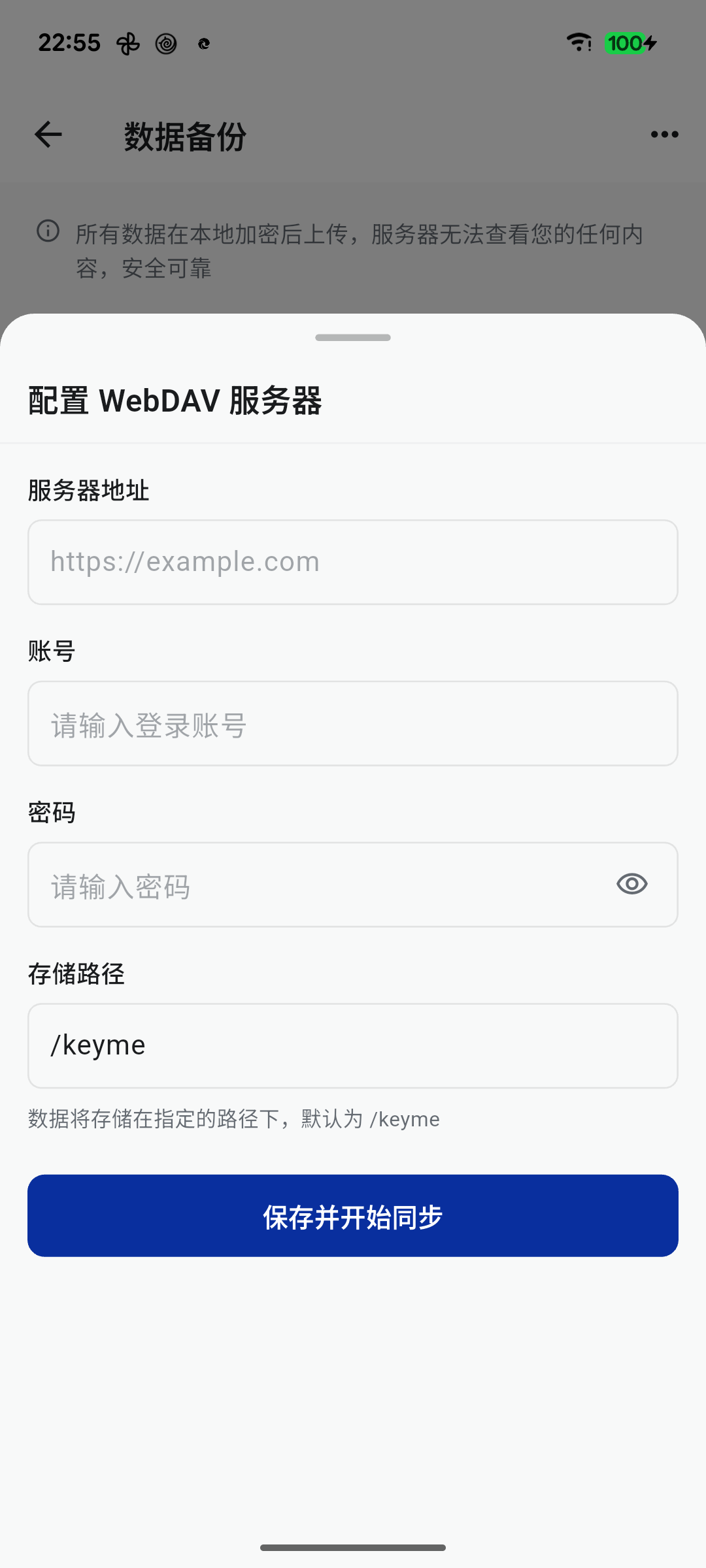
| Field | What to enter |
|---|---|
| Server URL | Your WebDAV address; must start with http:// or https:// |
| Username | Your login name for that service |
| Password | ⚠️ Not necessarily your login password — see below |
| Storage path | Optional; defaults to /keyme. Data is stored under this directory |
Tap Save and start syncing. This actually connects to the server to verify rather than just saving the values, so a wrong address or password fails immediately instead of at the first sync.
Verification can take tens of seconds depending on the server — do not close the sheet while it runs.
⚠️ The password field: many services want an app password
This is the most common reason setup fails. Many storage providers do not let third-party apps use your account password; you generate a separate one instead.
- Nextcloud / ownCloud — your login password usually works, but if two-factor authentication is on you must use an app password (Personal settings → Security). The WebDAV URL typically looks like
https://your-domain/remote.php/dav/files/username/; check what your server displays. - Synology — install and enable WebDAV Server from Package Center; use the address and port it shows.
- Nutstore (Jianguoyun) — an app password is required. Generate one under Account info → Security → Third-party app management on their website; the server address is shown on the same page.
If you get a 404 or 405 after saving, that is a different problem (a non-standard protocol implementation on the server side) — see Custom WebDAV sync returns 404/405.
Last step
Either way, finish the same: sign in to the same account on your second device and let it sync down.
Once configured, a sync card appears on the home screen showing the last sync time, with a Sync now button for manual runs.
Hosted or your own server
| Hosted | Your own WebDAV | |
|---|---|---|
| Setup | Just pick it | Server address, username, password |
| Capacity | 1 GB with membership | No limit (whatever your server has) |
| Where data sits | Our servers | Yours |
| Good for | Not wanting to fiddle | Deciding exactly where data lives |
The encryption is identical either way: data is encrypted on your device before upload, and the server holds ciphertext. Choosing your own server is not about being "more secure" — it is about controlling capacity and location.
The first sync
The first run uploads the whole vault, which takes a while with many entries or large attachments.
During first-time setup, sync waits about 15 seconds and then continues in the background rather than blocking the app.
The vault may look empty at that point while data is still arriving. The sync card on the home screen shows progress — give it a moment rather than force-quitting the app.
If the system kills it midway, the next unlock picks up where it left off.
Worth doing the first sync on Wi-Fi, with the app in the foreground for a moment.
After that
⚠️ Automatic sync is off by default and has to be switched on in the backup page. While it is off, syncing happens only when you tap "Sync now".
Once on, you can choose an interval: 1 / 3 / 7 / 14 / 30 days.
Two things to know:
- It only checks while the app is unlocked — nothing syncs quietly in the background while locked
- It is not a live push. Device A uploads, then device B pulls
So to see a change on the other device straight away, tap "Sync now" on both.
If the same entry changes on two devices
Fields are resolved separately, so edits to different fields do not overwrite each other — change a note on your phone and the password on your desktop, and both survive. Only when the same field changed on both sides does the later edit win. See When sync fails.
The browser extension
The extension syncs passwords, two-factor codes and passkeys. Documents, payment cards, secure notes and SSH keys stay in the app.