
Two different things
| Export file | Cloud backup / sync | |
|---|---|---|
| Result | A file you keep yourself | Data in the cloud, shared across devices |
| Triggered by | You, manually | Automatically |
| Cost | Free, unlimited | Membership feature |
| Good for | Archiving, moving to other software, a quick look | Everyday multi-device use |
Both live under My → Data management.
Export: which format
| ZIP (recommended) | CSV | |
|---|---|---|
| Contains | Everything: passwords, MFA, payment cards, ID documents (with images), secure notes, tags, folders, field templates | Logins only: passwords, MFA, secure notes |
| Encryption | Supported | Not supported (plain text) |
| Good for | Full backup, changing devices | Moving to other software, a quick look |
For a backup, choose ZIP and turn encryption on. CSV is a plain-text table — anyone who can open it sees every password. Use it only when something genuinely requires CSV, and delete it afterwards.
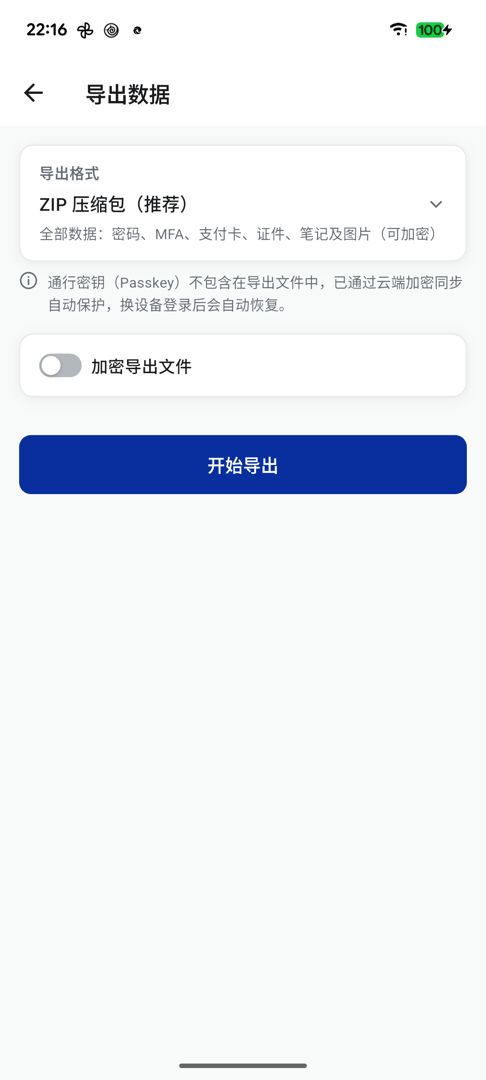
⚠️ Passkeys are not in the export
Passkeys are excluded from every export format. They are protected by encrypted cloud sync instead, and come back automatically once you sign in on a new device.
So: an export file is not all of your data. If you migrate by file alone, without sync, passkeys do not travel with it.
The encryption password
At least 6 characters. It is separate from your master password and must be remembered on its own — importing asks for it, and without it the file cannot be opened.
Importing it back
My → Data management → Import, choose KeyMe Pass as the source, then pick the file. ZIP, CSV and JSON files from older versions all work.
An encrypted ZIP asks for the password you set at export time.
Moving to a new phone
With membership (sync on)
Sign in to the same account on the new device and let sync finish. Worth running a manual sync on the old device first.
Without membership
- Old device: export a ZIP (encrypted is advisable)
- Transfer the file
- New device: Data management → Import → KeyMe Pass → pick the file
Remember that passkeys do not travel in the file (above).
How often to back up
There is no rule. A reasonable habit: with sync on you do not need frequent manual exports, but one is worth keeping at these moments —
- Before changing phones
- Before changing your master password
- After the first proper tidy-up of your vault