
Three ways to unlock, and what each is for
Found under My → Security settings.
| Method | Role |
|---|---|
| Master password | The only credential that opens the data. The key derives from it and is never uploaded |
| PIN (6 digits) | Quick day-to-day unlocking |
| Biometrics | Fingerprint or face, also for quick unlocking |
One thing worth being clear about: a PIN and biometrics are conveniences, not a second lock. They save you typing the master password; the master password is still what protects the data.
Biometric unlock is free, on the free tier too.
What happens if the PIN is wrong
Repeated failures trigger a cooldown that grows with each one, up to 24 hours. Restarting the app does not bypass it. One successful unlock by PIN or biometrics resets the count.
A caveat on Windows
With Windows Hello enabled, the system PIN also unlocks the vault. That is how the Windows interface works — an app cannot insist on a fingerprint. Anyone who knows your computer's sign-in PIN can open it; if that bothers you, leave Hello off and use the master password.
Auto-lock
Security settings → Auto-lock. Twelve intervals:
Immediately / 30 seconds / 1 minute / 3 / 5 / 10 / 15 / 30 minutes / 1 hour / 4 hours / 8 hours / never.
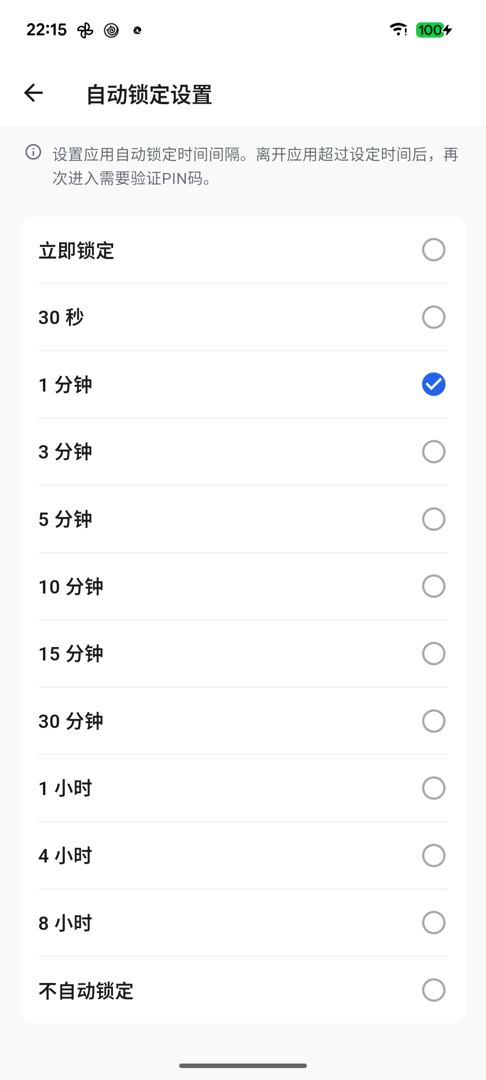
The default is 1 minute.
Does switching apps lock it?
Not necessarily — it goes by the interval you set. Only once you have been away longer than that does coming back require verification.
- "Immediately": locks as soon as you leave
- "Never": stays unlocked (manual locking still works, from the vault screen)
- Everything else: locks after that much time away
If unlocking feels too frequent, raise the value; lower it if you want to be stricter.
Two switches that are easy to miss
Clipboard clearing
Clears the clipboard a while after you copy a password — 30 seconds by default.
Why it matters: the clipboard is shared system-wide and other apps can read it. Copy a password, forget about it, and it simply sits there.
Privacy mode
Blocks screenshots and screen recording, so passwords cannot leak through a screen capture.
Off by default. Worth turning on if you often present or record your screen.
Changing the master password
Security settings → Change master password. Afterwards:
- Local data is unaffected; nothing needs re-importing
- Other devices need the new master password to unlock — the account password and master password are the same thing