
Why keep codes here too
Many people keep passwords in a password manager and 2FA codes in a separate authenticator, switching between the two at every sign-in. KeyMe Pass can attach a code to its login entry so both fill at once.
Two-factor codes are free and unlimited.
Adding a code
The "+" button on the vault screen offers two MFA entries:
Scan a QR code (easiest)
When a site turns on two-factor authentication it shows a QR code. Choose "MFA · Scan" and point the camera at it; every parameter comes across automatically.
Add by hand
For when there is no QR code, only a string. That field accepts either an otpauth:// link or a Base32 secret — paste whichever you have.
Two fields are required: the account and the secret — neither can be left blank. The account is whichever username or email the code belongs to, which is what tells several accounts at the same service apart.
"Provider" is optional and just labels who the code belongs to, which helps when you have many.
Note there is a single field — no need to choose "paste a link" versus "type a secret" first; the app works out which you gave it.
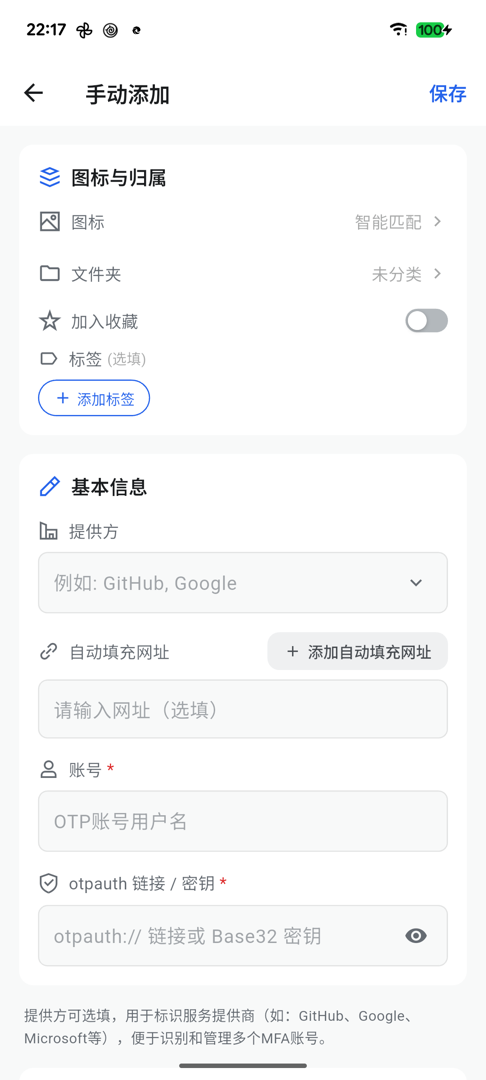
otpauth:// link or a Base32 secret⚠️ A bare secret always uses the common 6 digits / 30 seconds. A few services need 8 digits or 60 seconds; for those you must use an otpauth:// link or the QR scan, since a typed secret cannot carry those settings.
Import from another authenticator
Google Authenticator, 2FAS, Aegis, Raivo and lists of otpauth:// links (txt) are supported. See the import guide.
Linking to a login
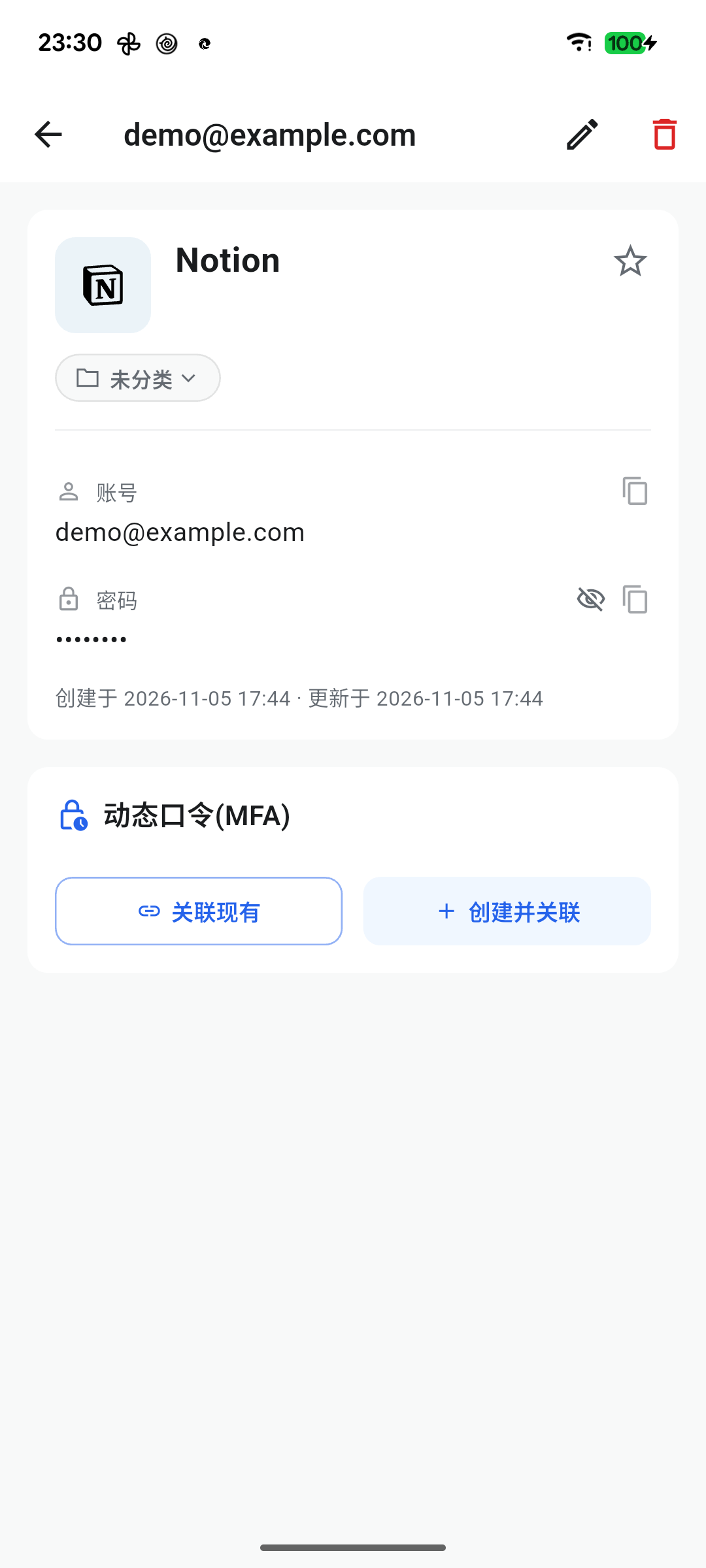
Open a login entry and scroll to the MFA section. Two buttons:
- Link existing — attach an MFA entry you already have
- Create and link — make a new one and attach it
Once linked, the current code shows on the login entry itself.
When the secret is not standard
A standard Base32 secret is at least 16 characters after normalization and contains only A-Z and 2-7.
Some services hand out secrets that do not match. KeyMe Pass does not reject them — it stores them as given, and tells you how many were like that when importing.
The reasoning: rejecting them would lock those accounts out, when they work fine in the authenticator you are coming from. If the generated code turns out wrong, go back and check the secret was copied in full.
What is not supported
Steam tokens and mOTP are not supported. They use non-standard algorithms, so a standard calculation produces the wrong code; importing from another authenticator skips those entries and says so.
Common questions
The code is always rejected
These codes are generated from the clock, so an inaccurate device time produces wrong codes. Check that your system time is set to update automatically.
Can codes be autofilled?
It depends where:
- Browser extension: yes. It detects the code field and offers one-click filling, with a countdown.
- Mobile apps: copy and paste for now. System-level code autofill is not wired up yet — usernames and passwords fill automatically, the code field does not.
Do MFA entries sync?
Yes, through the same encrypted sync as everything else (a membership feature). The browser extension syncs passwords, codes and passkeys.