
What is Autofill
KeyMe Pass Autofill can fill and save account passwords in third-party apps and browsers (non-membership capability). Please complete the default autofill service and permissions as guided in the app and on this page.
Platform support at a glance:
- Android: password fill and save, plus passkeys (requires Android 14 or later — see below).
- iOS: password fill and passkeys (iOS 17+); auto-saving new passwords requires iOS 26.2 or later.
- macOS: password fill and passkeys (macOS 14+), Safari and native apps only, and saving new passwords is not supported.
- HarmonyOS Next: system autofill is not supported yet (the OS has not exposed the APIs).
Before you start
- Turn on the Autofill switch in KeyMe Pass first.
- Set KeyMe Pass as the default autofill service in system settings, or suggestions will not appear in other apps.
- Complete background pop-up/display and notification permissions as prompted by your device.
If the app cannot open Settings, go there manually, search for "Autofill" or "Default apps", and set KeyMe Pass as the default autofill provider.
Android: recommended steps
Mode A: Standard Autofill (recommended first)
This is the primary path for most apps that support standard Android Autofill APIs.
1. Default autofill service
First, in system settings, search for Autofill and set KeyMe Pass as the default autofill service. Only after this can you use filling in other apps.
2. Enable Autofill
Then return to KeyMe Pass Autofill settings and turn on the main switch.
3. Permission hints (as needed)
Follow in-app prompts (names may vary by device):
- Background pop-up / display (highly recommended): on some OEM systems, filling may not respond until this is allowed.
- Notifications (highly recommended): helps with password-update flows (behavior varies by Android version).
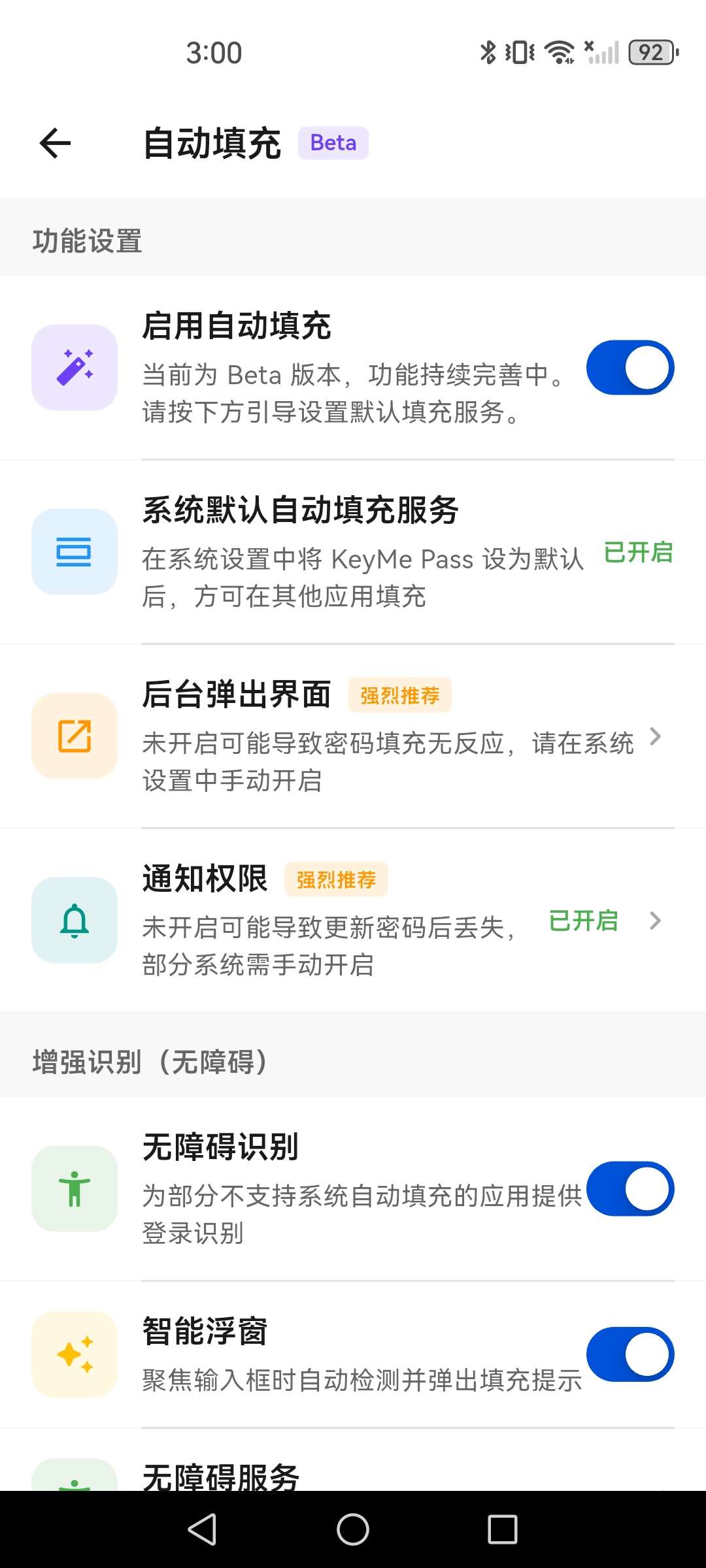
A1: Enable Autofill in app and review permission items
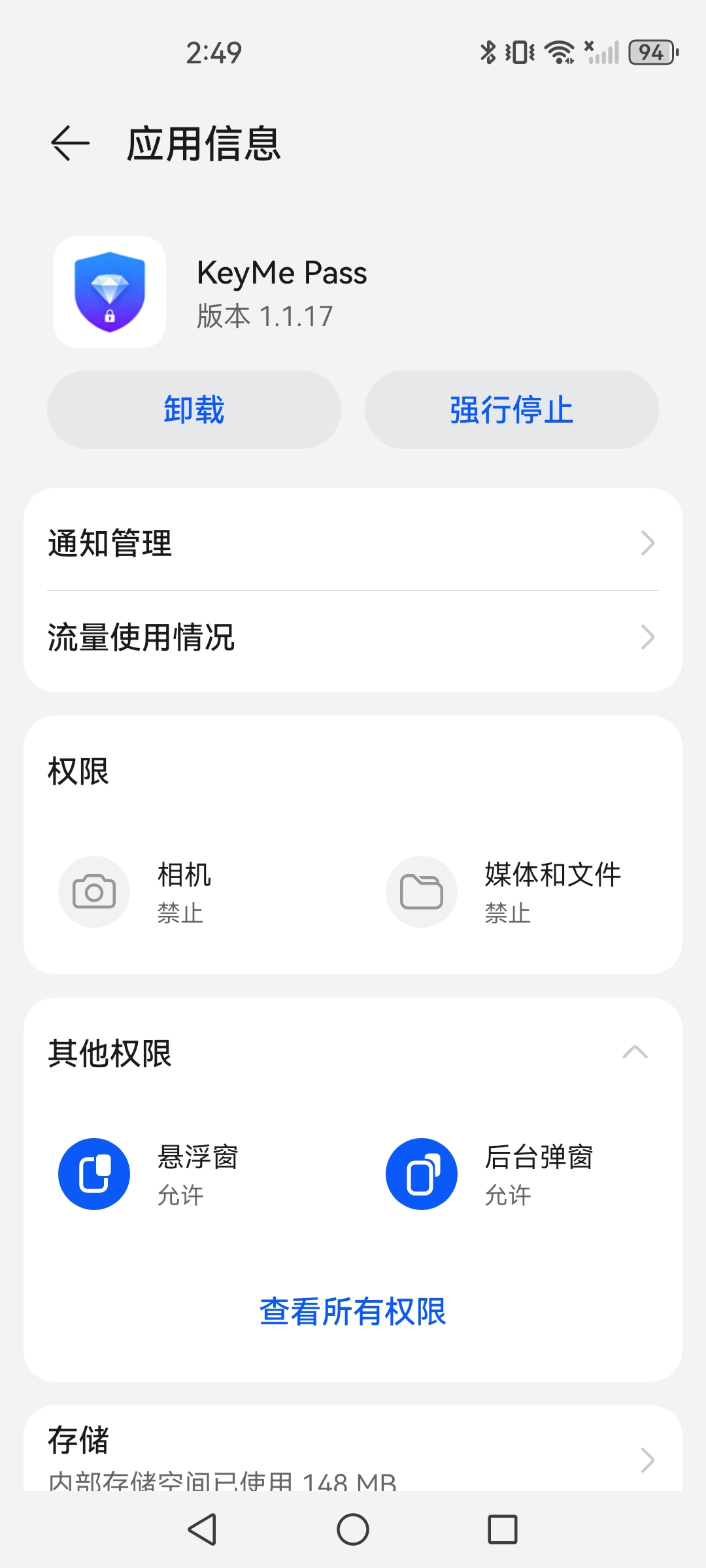
A2: Background pop-up/display permission (highly recommended)
After returning from system settings, use refresh status in the app to update detection.
Mode B: Accessibility recognition (Android enhanced detection)
For some apps that do not trigger the standard Android Autofill APIs, you can enable Accessibility recognition as a supplemental detection path.
-
In the Autofill settings page, first turn on "Accessibility recognition", then turn on "Smart floating window" that appears beneath it (the floating window is a sub-option and only appears once accessibility recognition is enabled).
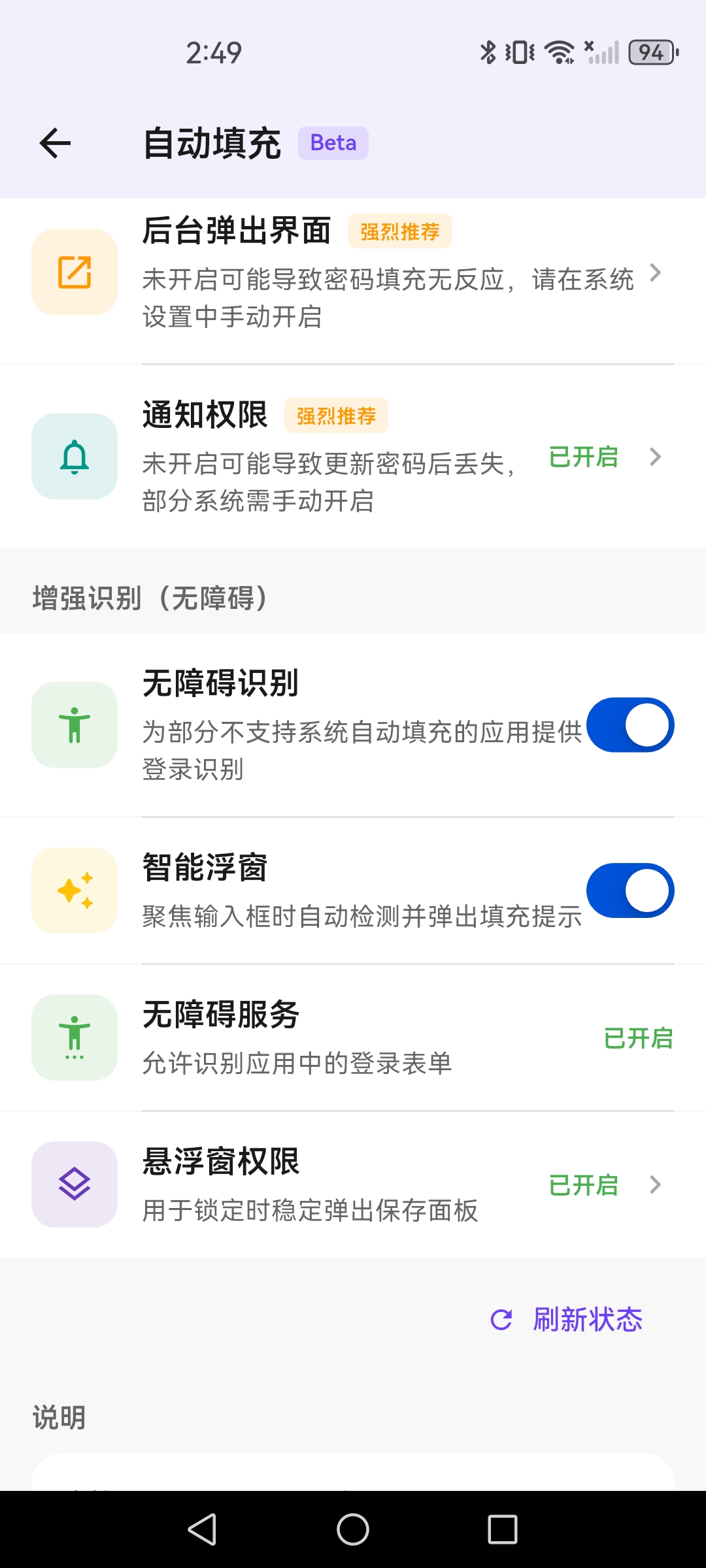
Step 1: Enable Accessibility recognition and smart floating window
-
Open the system Accessibility settings homepage.
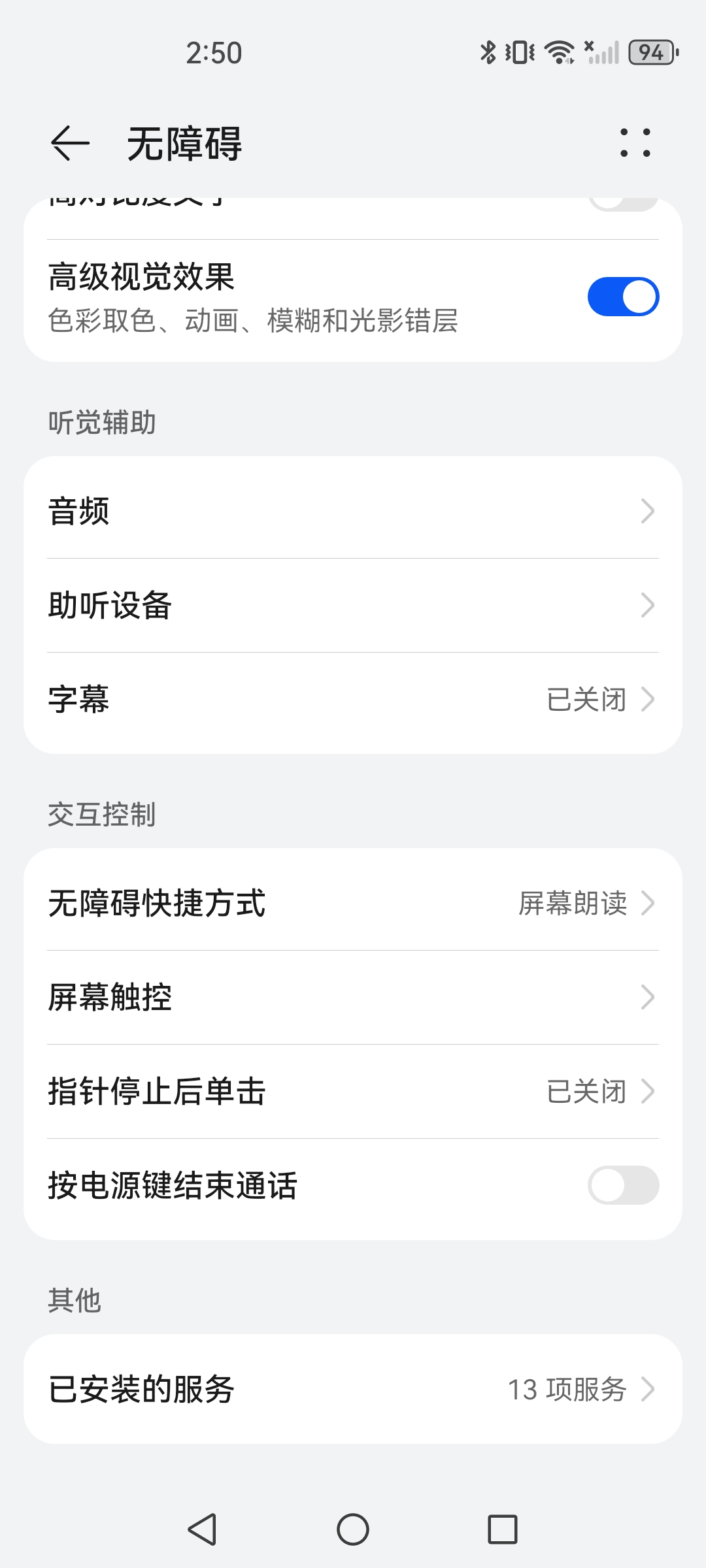
Step 2: Open system Accessibility settings
-
Enable the KeyMe Pass accessibility service permission.
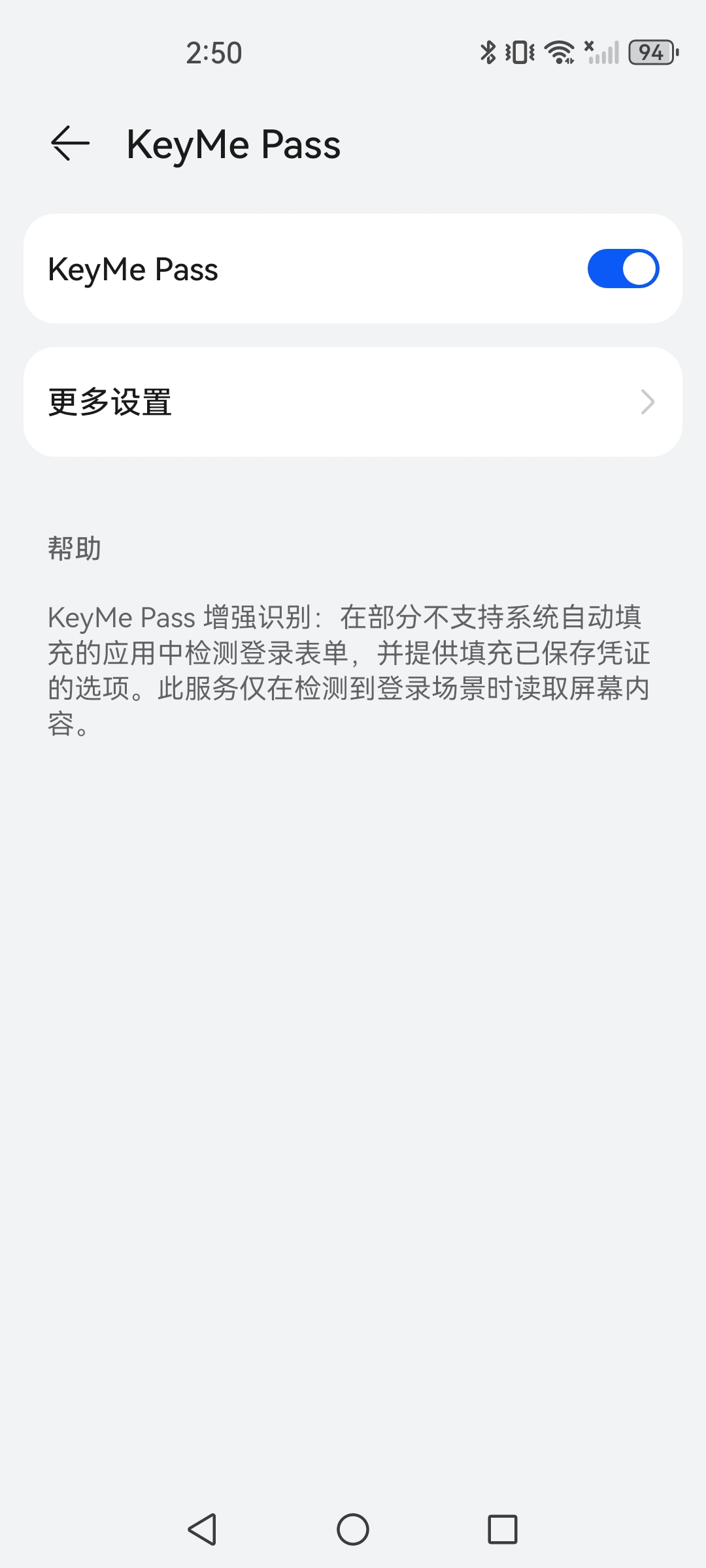
Step 3: Enable KeyMe Pass accessibility service
-
Optional: trigger accessibility recognition from the quick-settings tile.
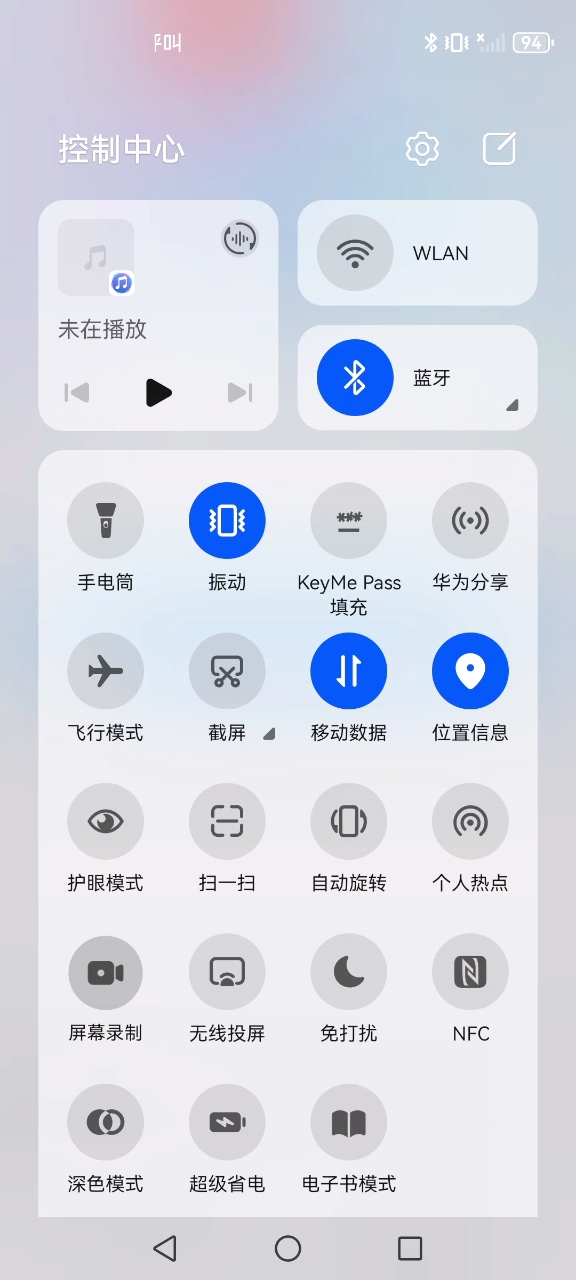
Step 4: Trigger from quick-settings tile
Usage flow can be viewed in this video:
Save prompts in browsers
In browsers such as Edge, KeyMe Pass fills passwords normally but does not show a "save / update password" prompt. This is a deliberate trade-off, for the reason below.
Android serves these browsers through a compatibility mode channel. In that mode, the password content the system hands to a password manager is the dots shown on screen (••••••), not the real password — this is how Android works, and every third-party password manager receives the same thing. That causes two problems:
- The wrong value gets saved: a string of dots would be stored as your password, potentially overwriting a correct entry and breaking your next sign-in.
- You get asked every time: the system cannot tell whether this password matches the stored one, so it asks again on every sign-in.
So in compatibility mode we no longer show the save prompt, ensuring your passwords are never overwritten with invalid content. Filling is completely unaffected.
To add a new password for such a browser, please add it manually in KeyMe Pass, or switch to a browser with native integration (see below).
Chrome: enable native integration (recommended)
Chrome moved to the native integration channel in version 137, which is not affected by the compatibility-mode limitation above — save prompts work normally there. To enable it:
- Make sure KeyMe Pass is set as the default autofill service in system settings.
- Open Chrome and go to Settings → Autofill and passwords.
- Choose "Autofill using another service" and point it at KeyMe Pass.
Note: whether a browser uses compatibility mode or native integration is decided by the system and the browser version; KeyMe Pass cannot switch it for you. Edge, Samsung Internet, Opera, Vivaldi and most China-market browsers still use compatibility mode today.
iOS: recommended steps
Open Settings → General → AutoFill & Passwords → AutoFill from and enable KeyMe Pass (exact labels depend on iOS language and version).
Some apps may show no candidates — it depends on whether the app exposes fillable fields to the system.
About saving new passwords (requires iOS 26.2 or later)
Handing a new password to a third-party password manager requires a system API for it. Apple only introduced that API in iOS 26.2; on earlier versions the system simply never notifies third-party password managers that there is a new password to save. This is a system-level limitation and applies to every password manager equally.
So:
- iOS 26.2 and later: new passwords can be saved automatically; you will be prompted after signing up or signing in.
- Below iOS 26.2: no save prompt appears. Please add entries manually in KeyMe Pass, or add directly from the password suggestion list; newly added items are automatically associated and stored.
Fill from the long-press menu (iOS 18 and later)
On iOS 18 and later, even if a field is not recognised as a login field, you can long-press the text field and choose AutoFill from the menu to pick content from KeyMe Pass. This helps with custom sign-in screens.
macOS: recommended steps
Open System Settings → General → AutoFill & Passwords and enable KeyMe Pass. Once enabled, you can fill passwords and passkeys in Safari and in native apps that support AutoFill.
Important limitations
Two system-level macOS limitations to know about — neither is a KeyMe Pass fault:
- Safari and native apps only. The macOS system AutoFill pipeline is open only to Safari and native apps; Chrome, Edge, Firefox and other browsers do not integrate with it, so KeyMe Pass suggestions will not appear there — this applies to every third-party password manager. For those browsers, use the KeyMe Pass browser extension instead.
- New passwords cannot be saved. macOS provides no API for handing a new password back to a third-party password manager, so no save prompt appears. Please add new passwords manually in the KeyMe Pass app; once added, they fill normally in Safari and native apps.
macOS autofill requires macOS 14 or later.
Other notes
If matching fails: check the entry's URL and app linking
- Web (domain matching): the login URL participates in matching; for WebView or multi-domain sites, add or verify domains on the password entry.
- Android native apps: package name and related metadata matter; in some cases you can use
androidapp://package.namein the URL field (replace with the real package name) to associate the entry with an app.
If it still fails, check that the URL and app association fields on the entry are correct.
Known limitations at a glance
- Some apps (e.g. certain messengers) do not use the standard system autofill APIs and may never show candidates.
- Browsers, in-app WebViews, and redirects can make domain matching less stable.
- Android: some browsers (compatibility mode) do not prompt to save passwords; filling is unaffected.
- iOS: versions below 26.2 cannot save new passwords automatically; add them manually.
- macOS: system autofill works only in Safari and native apps — use the browser extension elsewhere — and cannot save new passwords.
- HarmonyOS Next (HarmonyOS 5.x and above) currently does not support autofill because the system has not exposed the required APIs. HarmonyOS versions below 5.x are Android-compatible and can use the Android autofill capability.
Passkeys
Beyond passwords, KeyMe Pass can also store and use passkeys for passwordless sign-in on supported sites and apps. For setup, OS version requirements and device compatibility, see the Passkey Guide.
For everything else KeyMe Pass does beyond autofill, see the features page.