
The extension you've been waiting for
Until now, KeyMe Pass autofill lived on your phone. Today it comes to the desktop: the KeyMe Pass browser extension is available for Chrome, Edge and other Chromium-based browsers. Sign in, generate, and save passwords right where you browse — with the same end-to-end encryption as the app.
What it does
- Autofill — detects login fields and fills your saved credentials with one click.
- Save passwords — prompts to save new credentials when you sign in or register.
- Generate strong passwords — create and fill high-strength passwords on sign-up and change-password pages.
- 2FA codes — manage TOTP codes and fill them at login.
- Cross-device sync — shares the same encrypted vault as the mobile app when sync is enabled.
Privacy by design
The extension is end-to-end encrypted. Your master password and vault are decrypted only on your device — we can never read them. This is the same zero-knowledge architecture that powers the KeyMe Pass app.
How to install
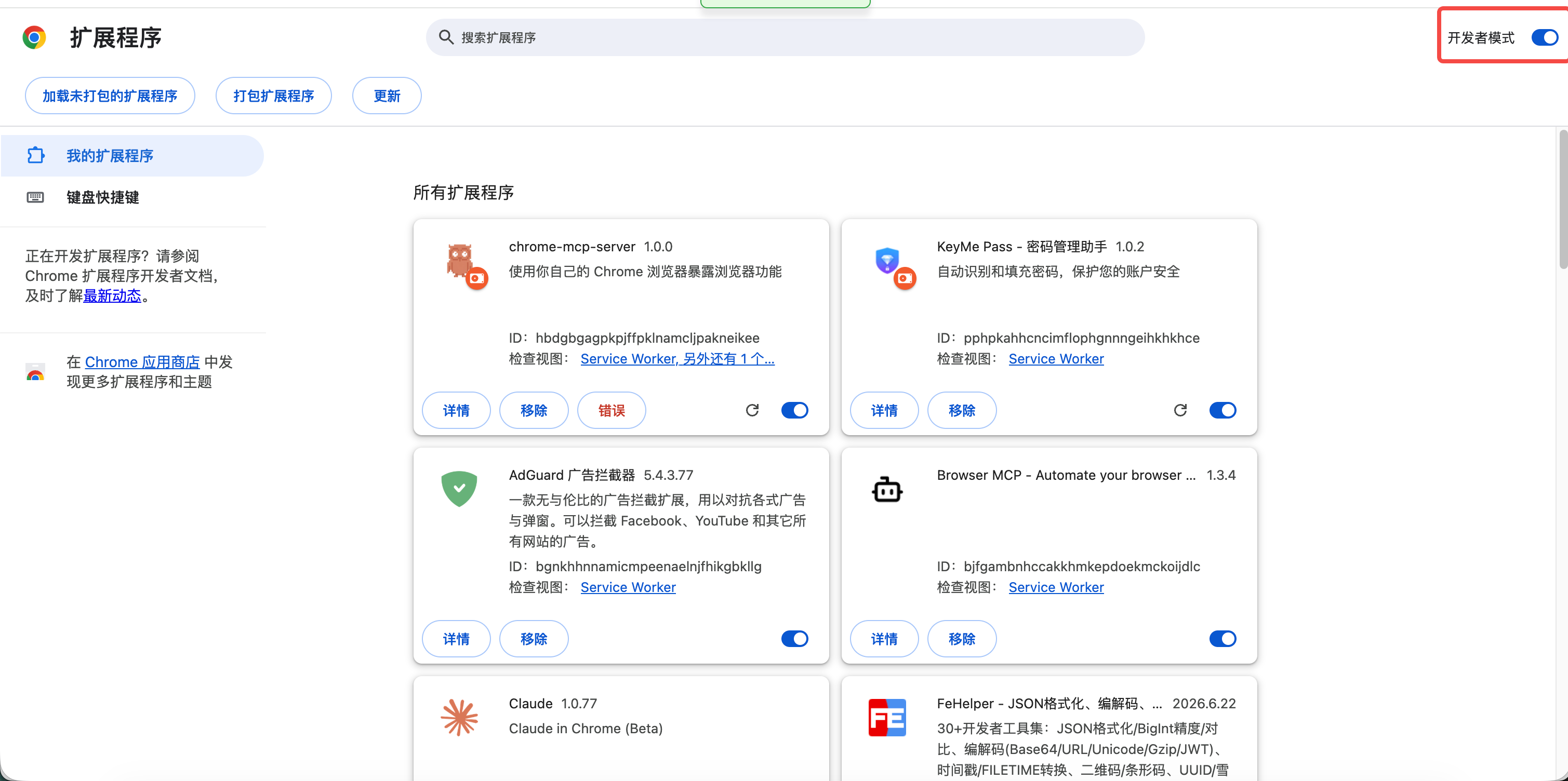
The extension is coming to the Chrome Web Store soon. For now you can install it in a minute via developer mode:
- Download the extension from the download page and unzip it to a permanent folder.
- Open
chrome://extensions(oredge://extensions) and turn on Developer mode. - Click Load unpacked and select the unzipped folder.
Full step-by-step instructions, including how to update, are in the Browser Extension Guide.
Get started
Head to the download page to grab the extension, then unlock it with your master password and start filling. Firefox and Safari support is on our radar — stay tuned.