
What the extension does
The KeyMe Pass browser extension works on Chrome, Edge and other Chromium-based browsers and provides:
- Autofill: detects login fields and fills saved credentials with one click.
- Save passwords: prompts to save new credentials to KeyMe Pass when you sign in or register.
- Generate strong passwords: create and fill a high-strength password on sign-up / change-password pages.
- 2FA codes: manage TOTP codes and fill them quickly at login.
- Cross-device sync: shares the same encrypted vault as the mobile app (sync required).
The extension is end-to-end encrypted — your master password and vault are decrypted only locally, same as the app.
How to install
The extension is coming to the Chrome Web Store soon. Until then, install it via developer mode (steps below). This page will be updated with a one-click install link once it's published.
Option 1: Download the zip and load unpacked (recommended for now)
- On the download page, click "Download Extension" to get
keyme_pass_extension.zip. - Unzip it into a permanent folder (don't delete the folder — the extension runs from it).
- Open
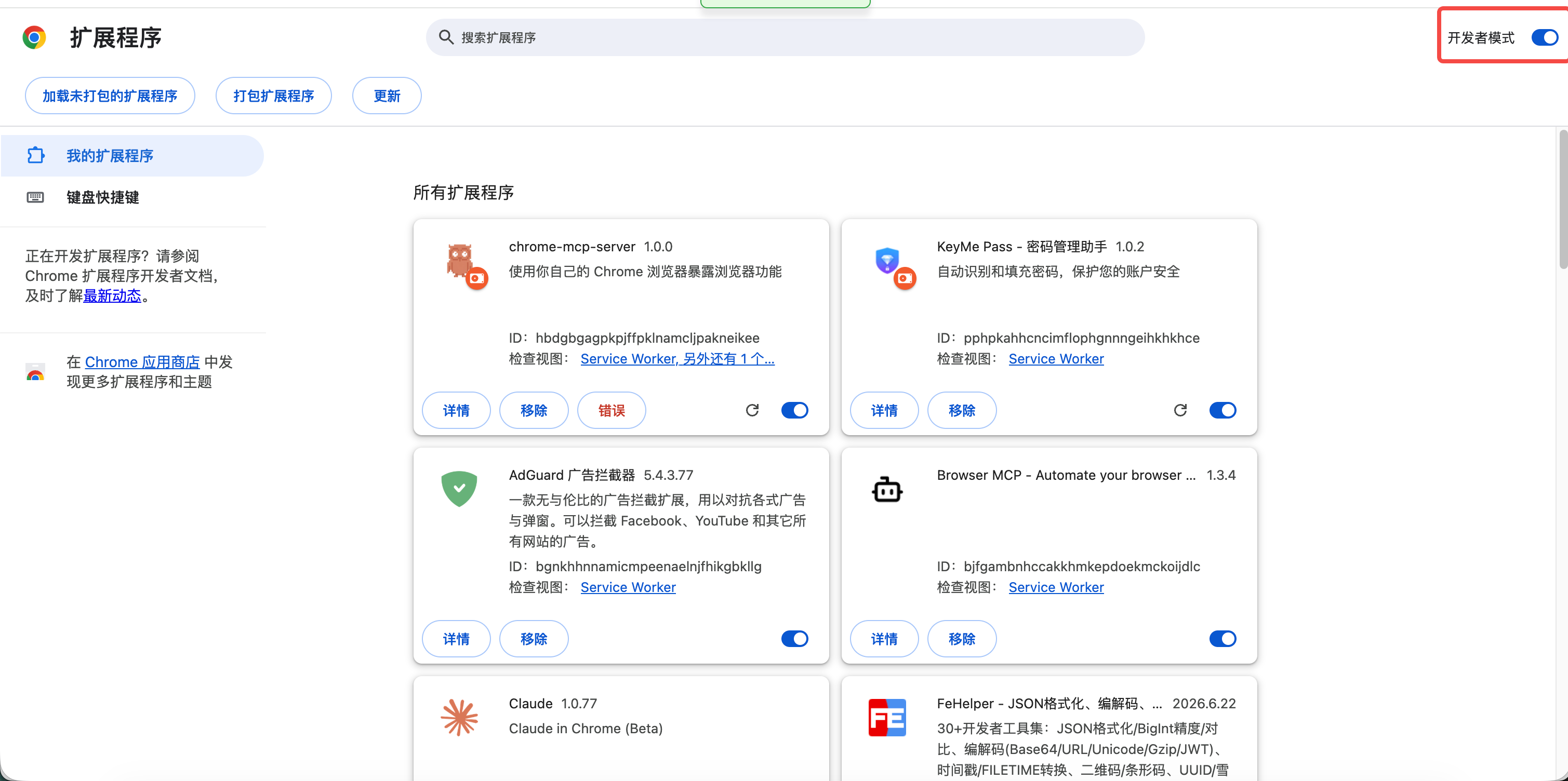
chrome://extensionsin your browser (edge://extensionson Edge). - Turn on Developer mode in the top-right corner.
- Click Load unpacked and select the folder from step 2.
- The KeyMe Pass icon appears in the toolbar. Pin it via the puzzle-piece menu for quick access.
Tip: to update, download the new zip, overwrite the same folder, then click the extension's reload button on the extensions page.
Option 2: Chrome Web Store (coming soon)
Once review passes, you'll be able to install from the Chrome Web Store with one click and get automatic updates. Stay tuned.
Getting started
- Click the KeyMe Pass toolbar icon and unlock your vault with your master password.
- On any login page, a small KeyMe icon appears next to the username/password field — click it to pick and fill a saved account.
- After signing in to a new site, the extension offers to save that credential to your vault.
- On sign-up or change-password pages, choose Generate strong password in the password field.
If the icon covers a site's built-in "show password" button, just drag it aside.
FAQ
- Which browsers are supported? Chrome, Edge and other Chromium-based browsers. Firefox and Safari are not supported yet.
- No autofill icon? Make sure the extension is unlocked. Some sites render password fields lazily — refresh the page or click into the field and try again.
- Is my data safe? The extension is end-to-end encrypted like the app; we cannot read your master password or vault.